 1 / 6
1 / 6About this app
Introduction
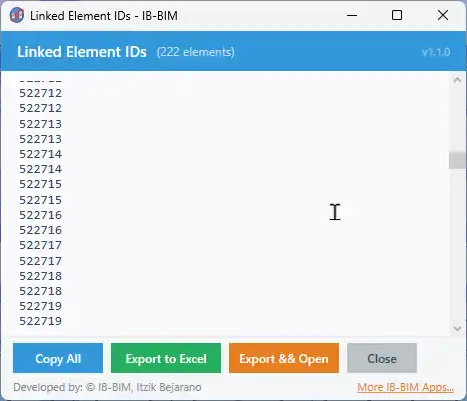
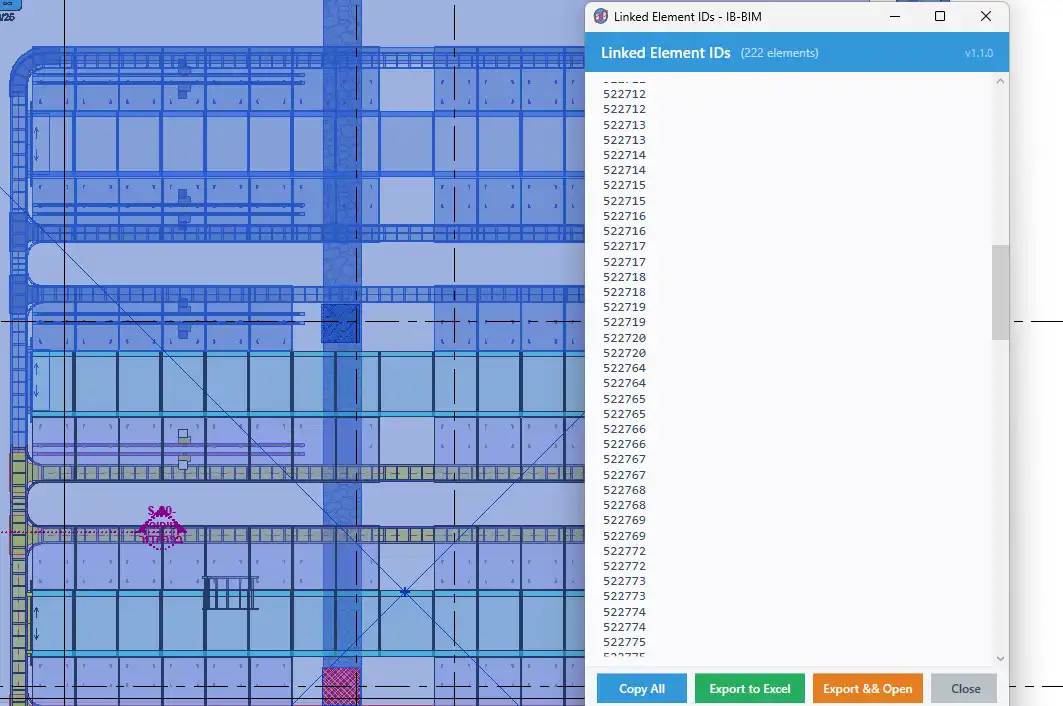
If you are a BIM Coordinator, Architect, or Engineer working with complex multi-discipline linked models in Revit, then the Get Linked IDs plugin is a must-have tool for your workflow. This powerful add-in allows you to easily extract element IDs and detailed properties from linked models, making it ideal for creating filters, schedules, clash reports, and cross-model references.
(Image by: IB-BIM)
Key Features
The Get Linked IDs plugin offers a range of key features that make it a valuable tool for Revit users:- Select multiple elements from any linked Revit file - View all selected element IDs in a styled results window - Copy all IDs to clipboard with one click - Export to Excel with full element details including Element ID, Category, Family, Type Name, Link File Name, Level, Workset, Phase, and Mark - Export & Open - save and open Excel directly - Safe file export with retry logic for locked files - Color-coded Excel headers with auto-filter and freeze panes - IB-BIM branded interface with app icon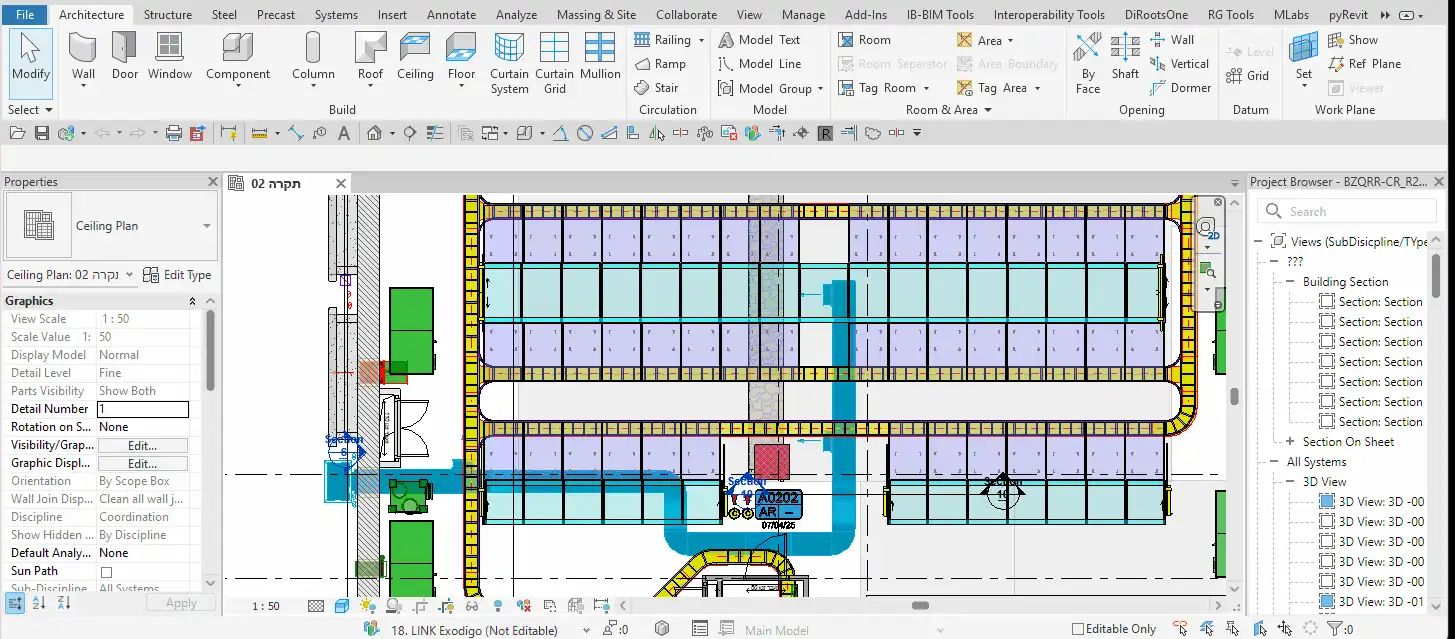
(Image by: IB-BIM)
What's New in v1.1.0
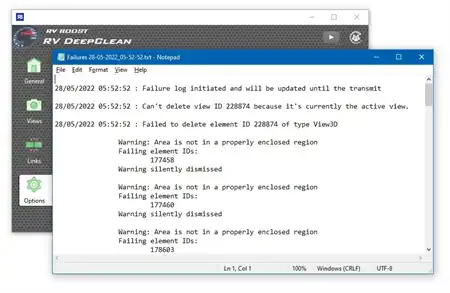
The latest version of Get Linked IDs (v1.1.0) brings some exciting new features and improvements to the plugin, including:- Excel export with 9 columns of element information - Export & Open Excel directly from the app - Support for Revit 2027 - IB-BIM Tools ribbon tab - Styled dialog with Close button - More IB-BIM Apps discovery link - Logging system for technical support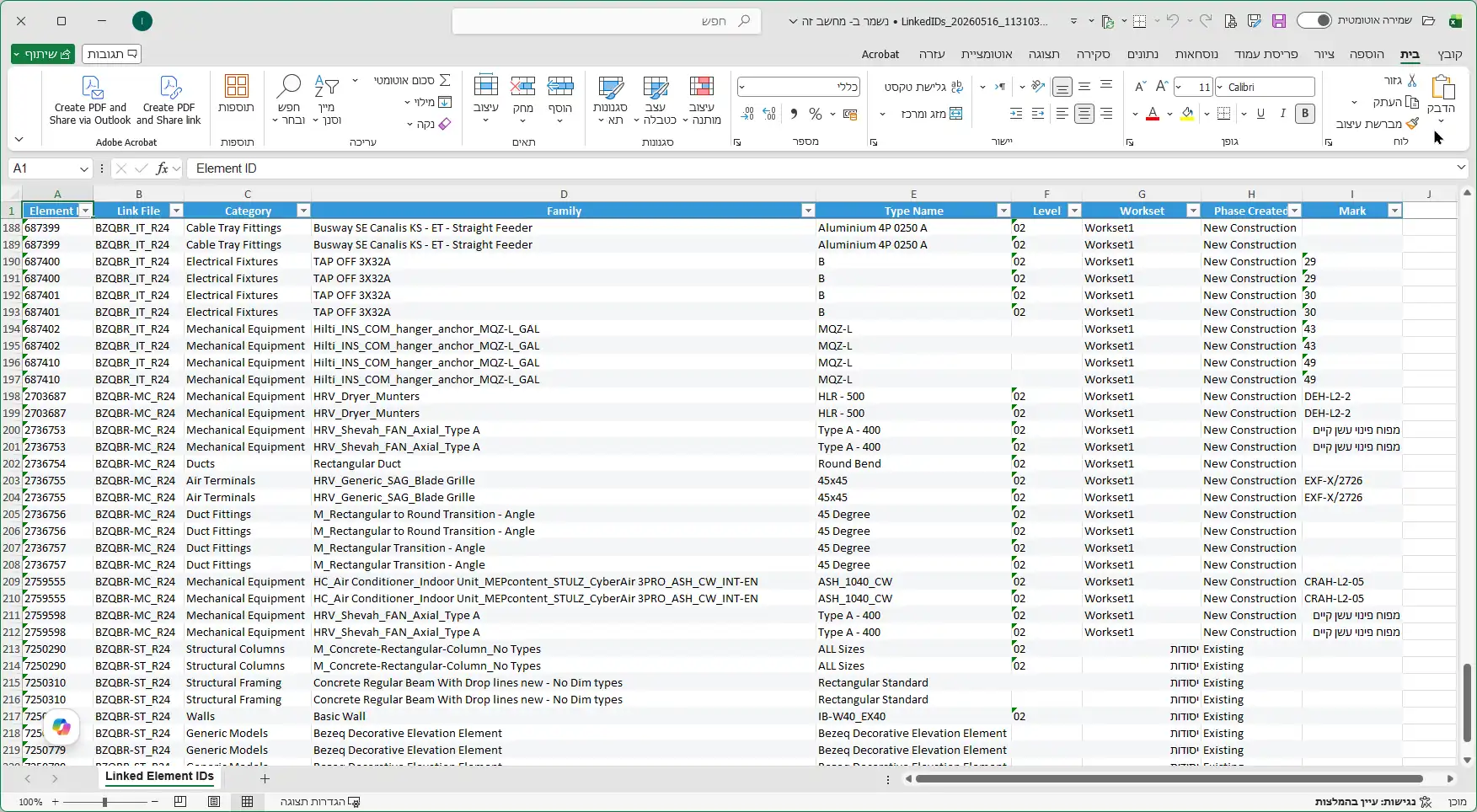
(Image by: IB-BIM)
Summary
Overall, the Get Linked IDs plugin is a fantastic tool for BIM professionals working with linked models in Revit. Its ability to extract element IDs and detailed properties from linked models simplifies the process of creating filters, schedules, clash reports, and cross-model references. With a user-friendly interface and a range of useful features, this plugin is a valuable addition to any Revit user's toolkit. If you haven't already tried Get Linked IDs, I highly recommend giving it a go and experiencing the benefits for yourself.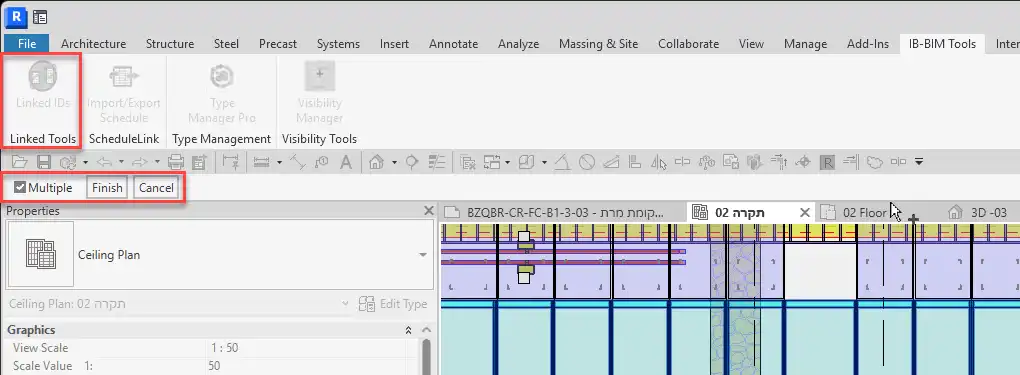
(Image by: IB-BIM)
(Image by: IB-BIM)
(Image by: IB-BIM)
Similar apps:
- Free
- Free
- $100
- Free
- Free
- Free