 1 / 11
About this app
Introduction
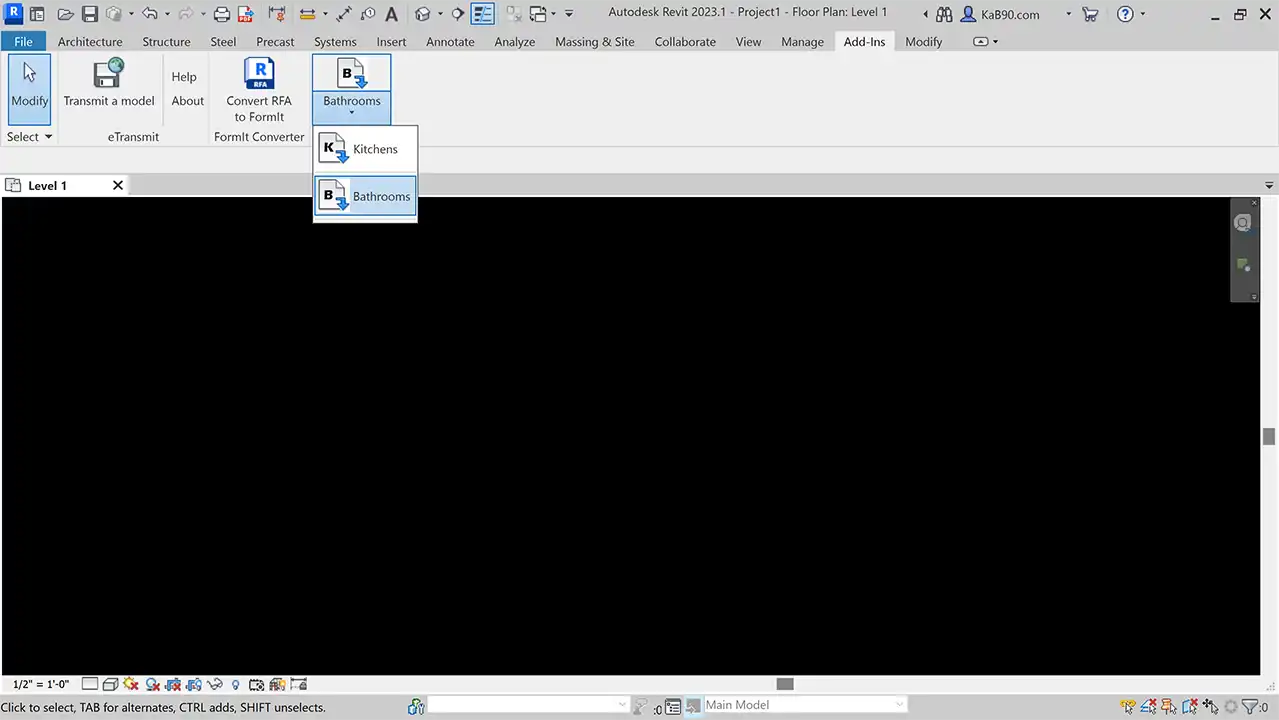
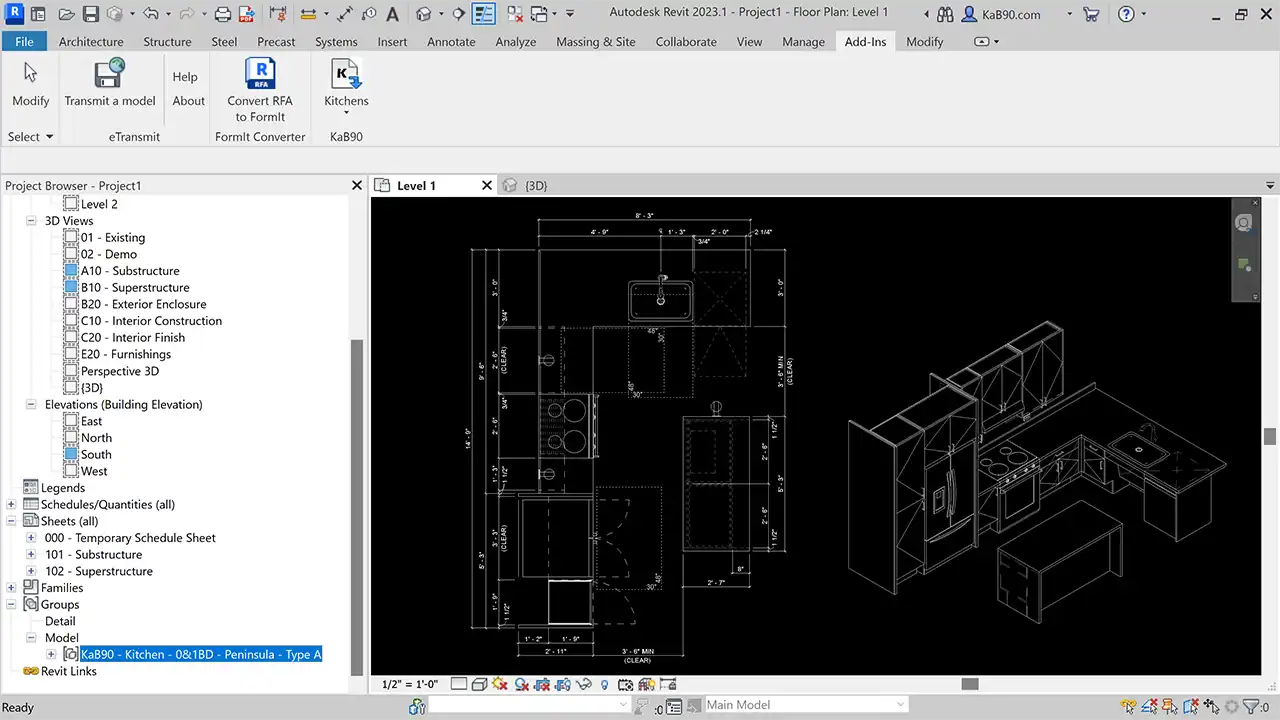
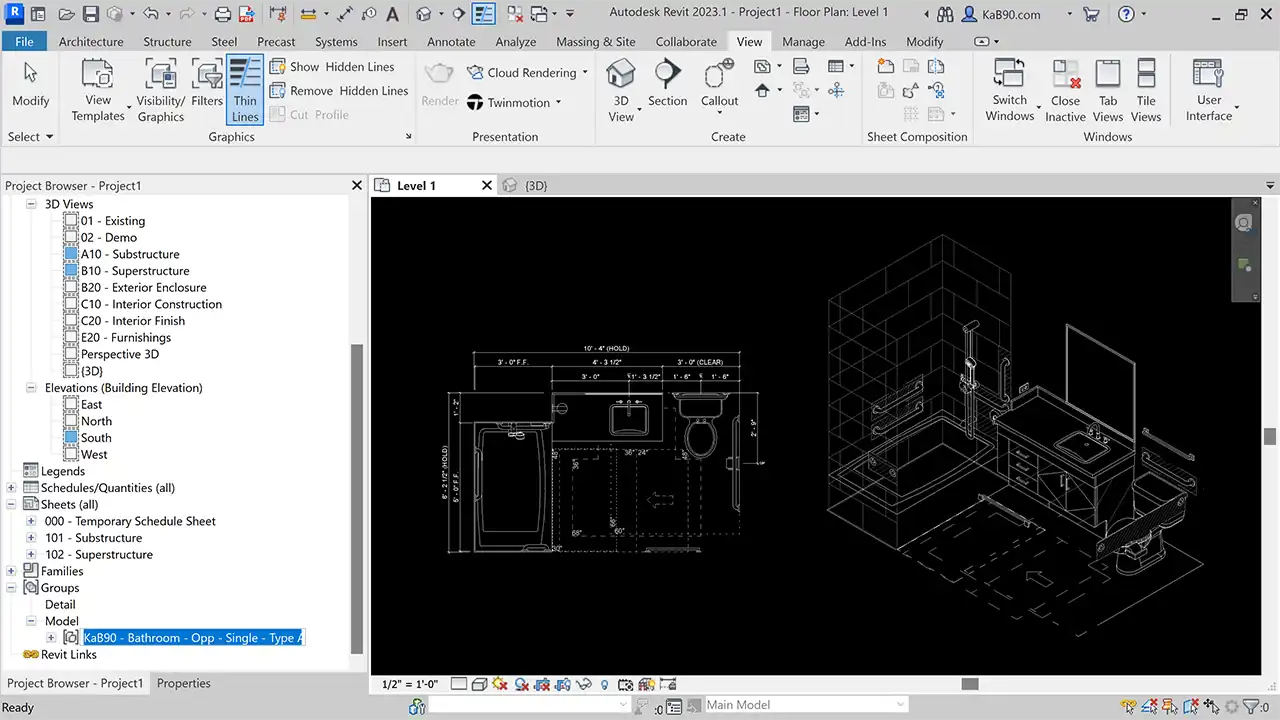
If you are an architect, interior designer, or anyone working on building projects using Autodesk® Revit®, you know how time-consuming it can be to create detailed 3D models of kitchens and bathrooms. Enter KaB90, a game-changing plugin that streamlines the process of generating code-compliant and fully customizable 3D kitchens and bathrooms in Revit.
(Image by: Second Stage Technologies, LLC)
Features
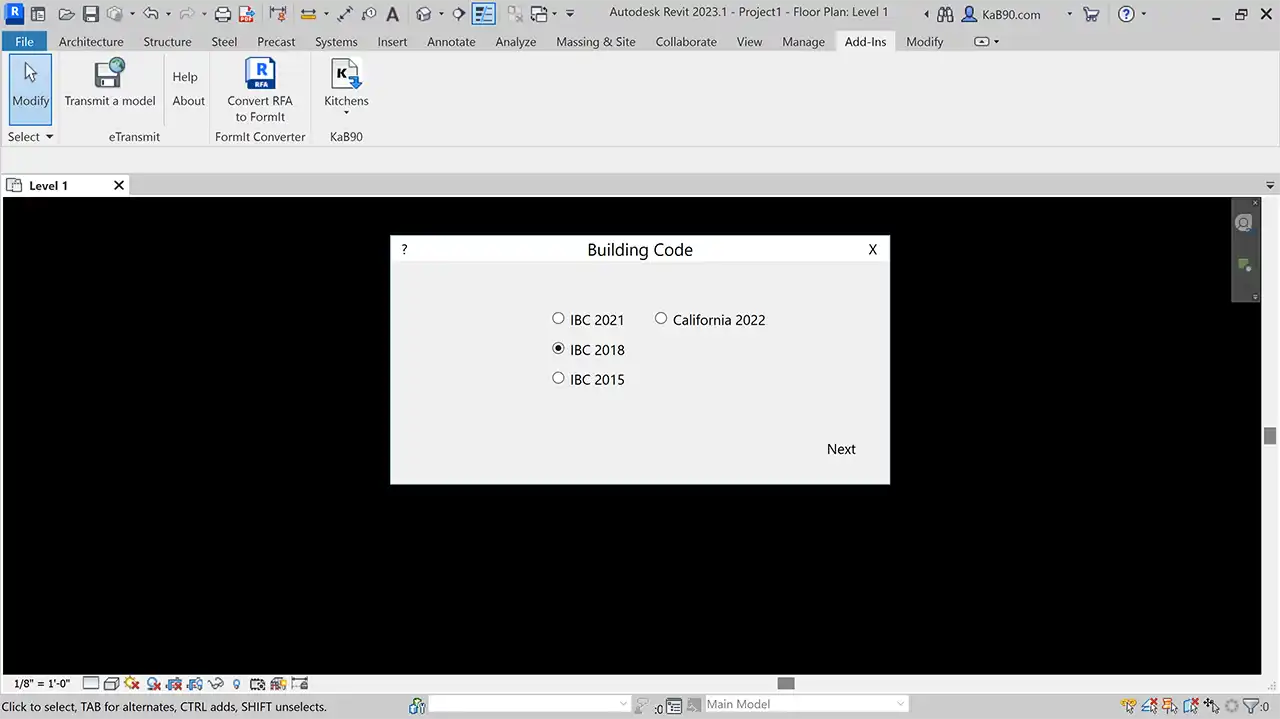
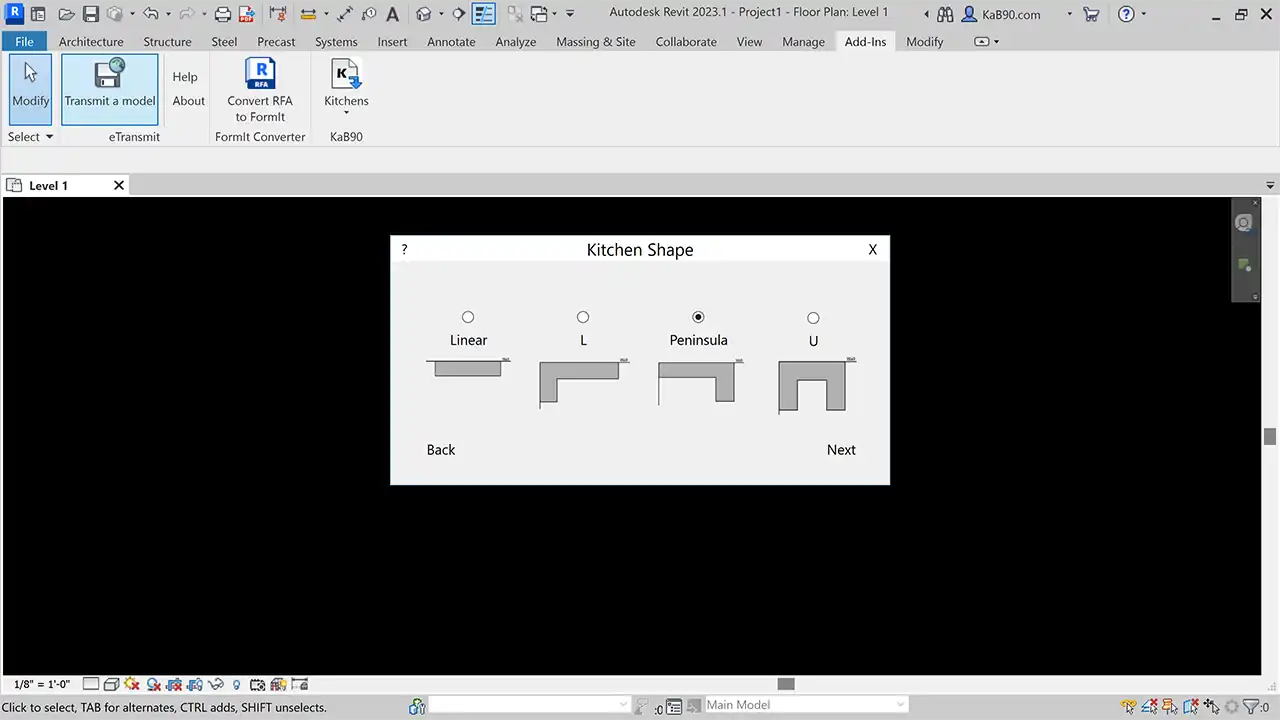
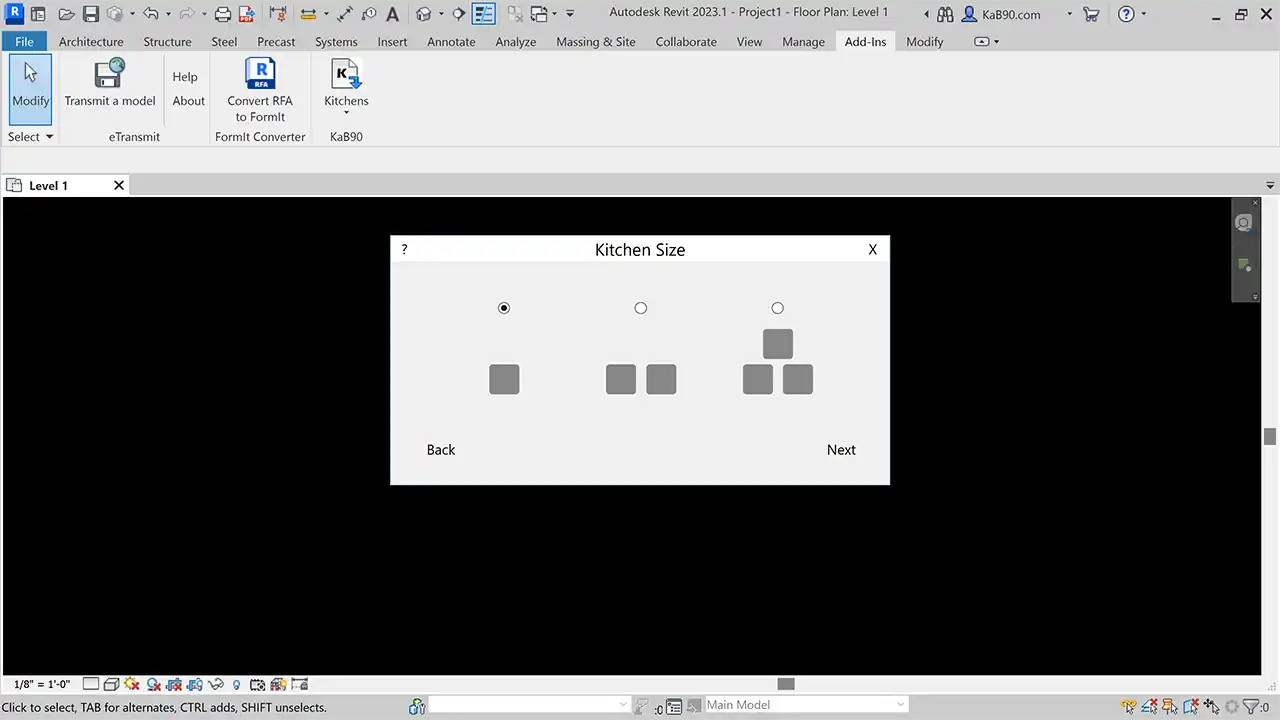
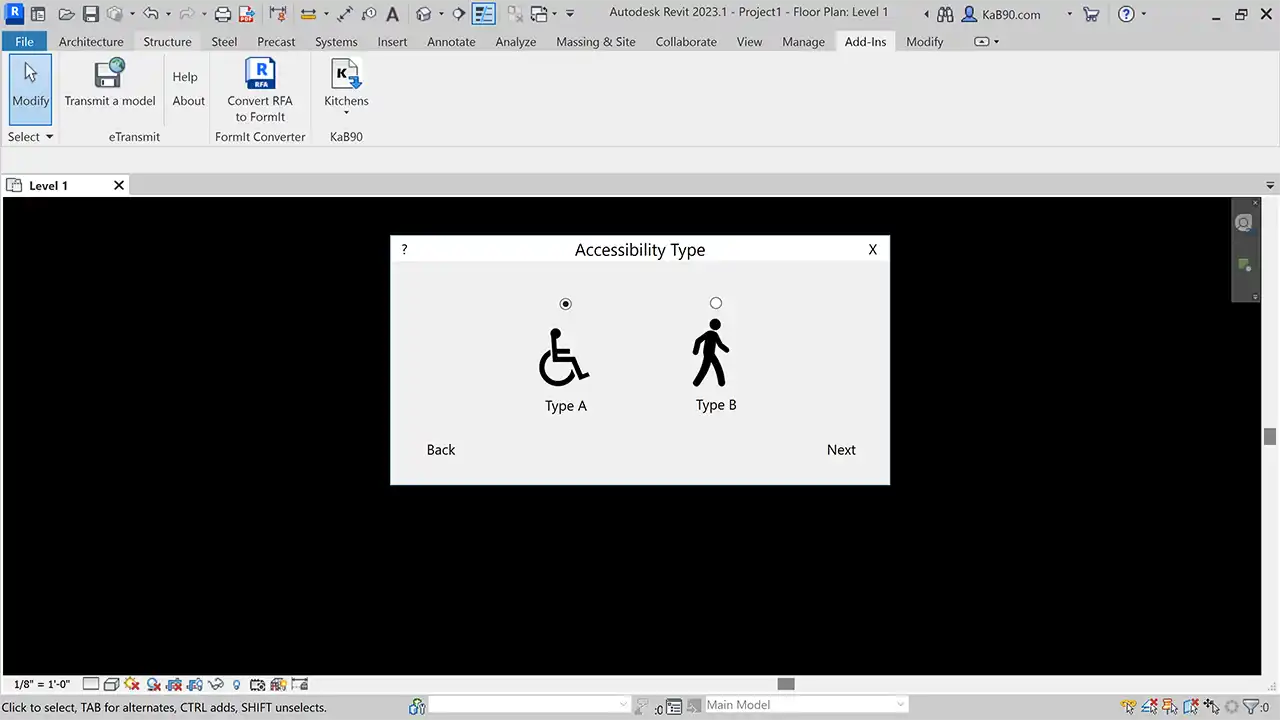
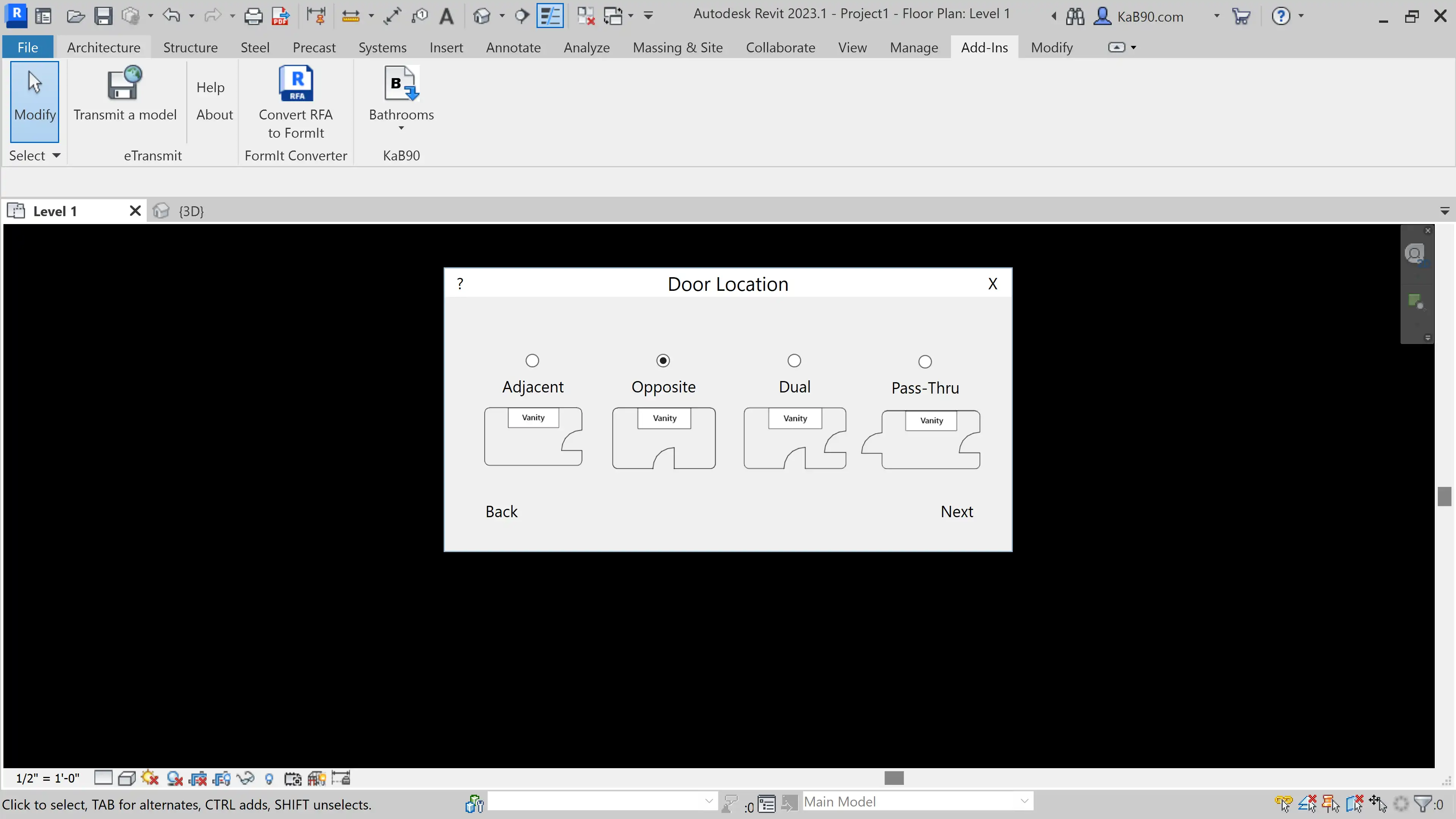
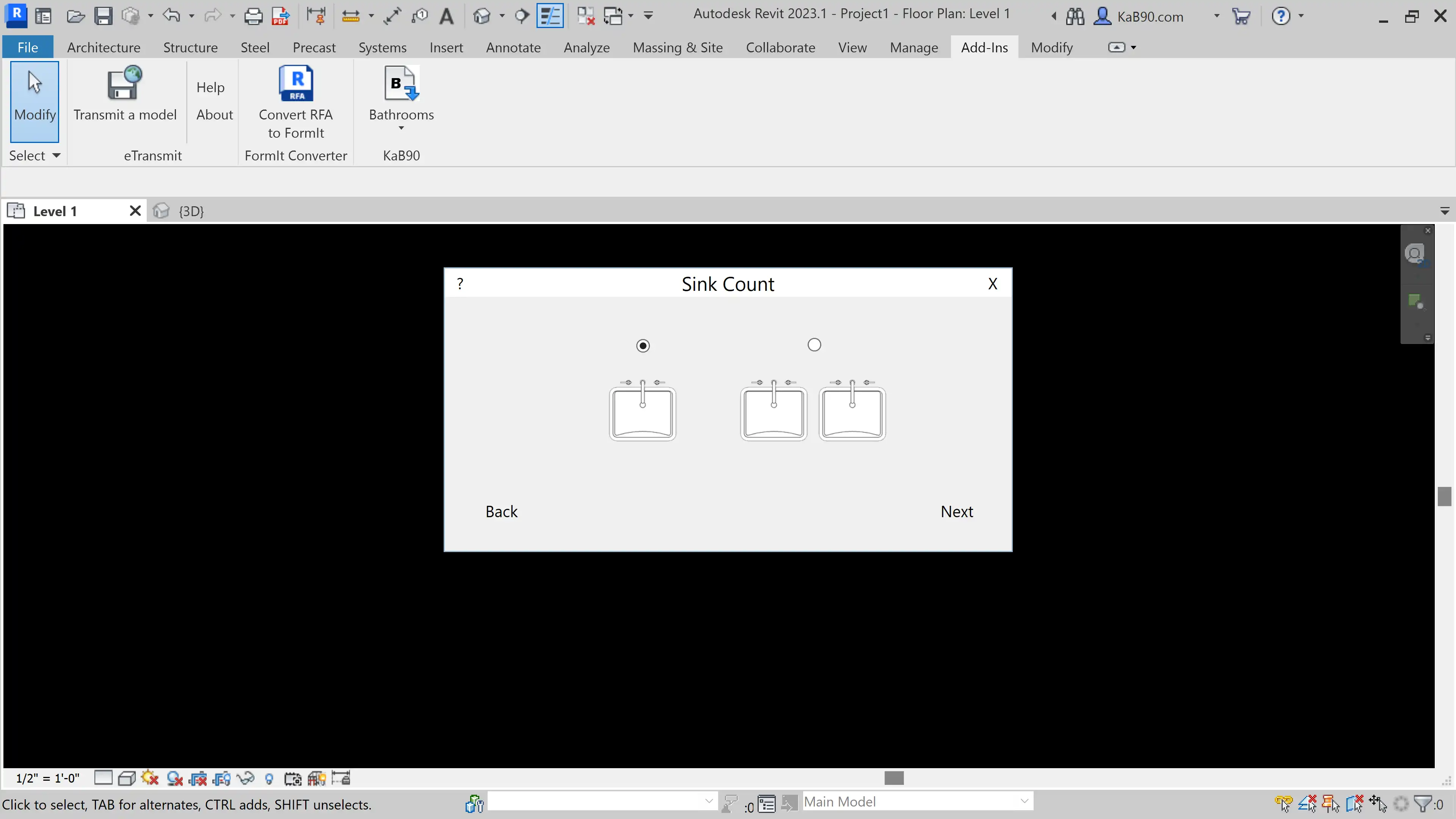
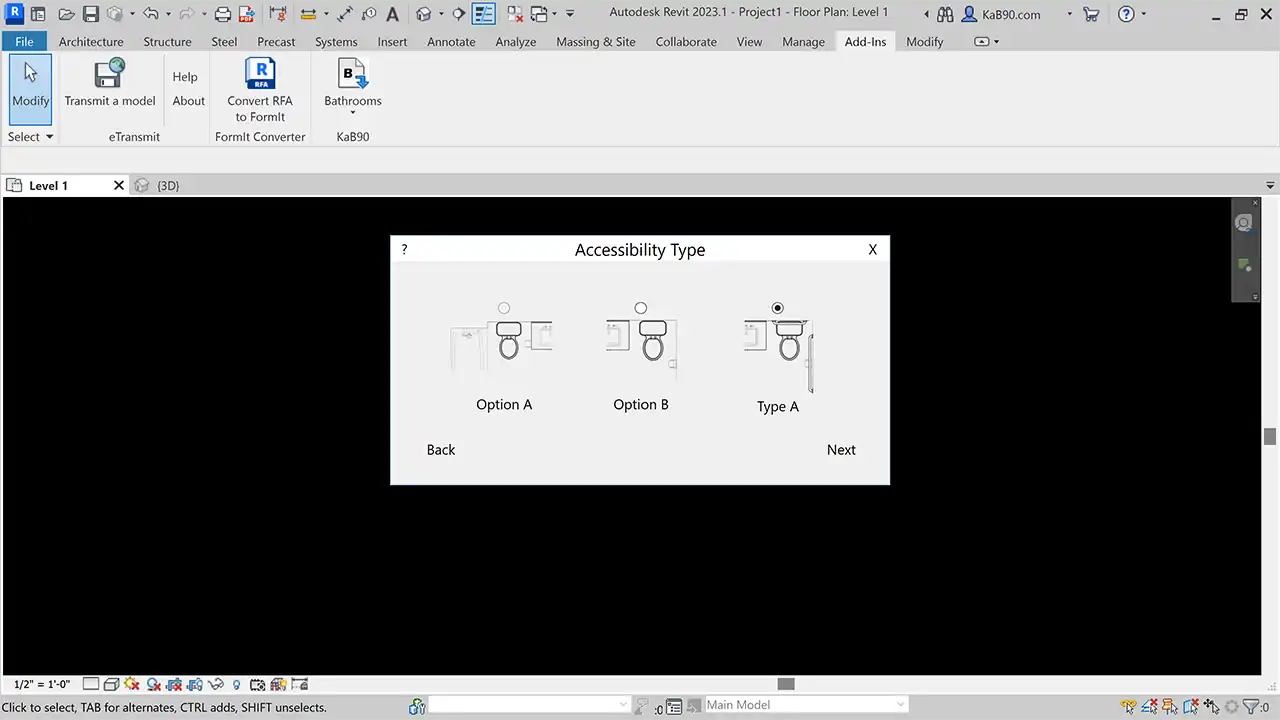
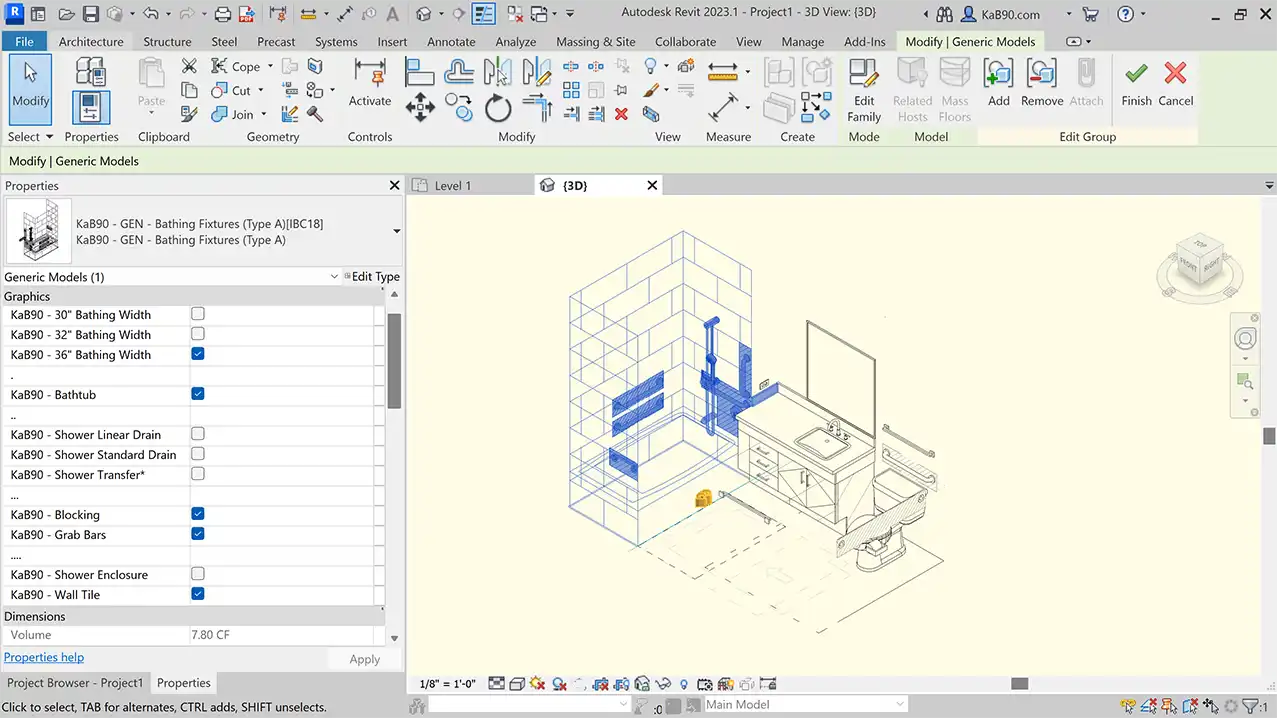
KaB90 allows you to select your specific kitchen or bathroom requirements, including building code regulations, and instantly generate a 3D model group in your project browser. With layouts that have been verified for code compliance and functionality, you can trust that your designs meet industry standards. The best part is that all layouts are pre-dimensioned and fully customizable to suit your project’s unique needs and style preferences.
(Image by: Second Stage Technologies, LLC)
Effortless Design
With KaB90, creating code-compliant kitchens and bathrooms has never been easier. Simply drag and drop the pre-designed models into your project, saving you valuable time and effort. Whether you are working on residential, commercial, or industrial projects, KaB90 offers a user-friendly solution for bringing your vision to life in 3D.
(Image by: Second Stage Technologies, LLC)
Conclusion
Overall, KaB90 is a must-have plugin for anyone using Autodesk® Revit® for architectural and interior design projects. Its seamless integration, ease of use, and customizable features make it a valuable tool for streamlining the design process and ensuring code compliance. Try KaB90 today and experience the convenience of effortless 3D kitchen and bathroom generation in Revit.
(Image by: Second Stage Technologies, LLC)
(Image by: Second Stage Technologies, LLC)
(Image by: Second Stage Technologies, LLC)
(Image by: Second Stage Technologies, LLC)
(Image by: Second Stage Technologies, LLC)
(Image by: Second Stage Technologies, LLC)
(Image by: Second Stage Technologies, LLC)
(Image by: Second Stage Technologies, LLC)
Similar apps:
- Free
- Free
- Free
- Free
- Free
- Free