
About this app
Introduction
Are you tired of manually converting 2D AutoCAD data into 3D Revit elements? Look no further than BIMify - the ultimate productivity tool designed for Architects, Engineers, and BIM Managers. This plugin automates the tedious process of modeling from CAD links, saving you hours of repetitive work on every project.
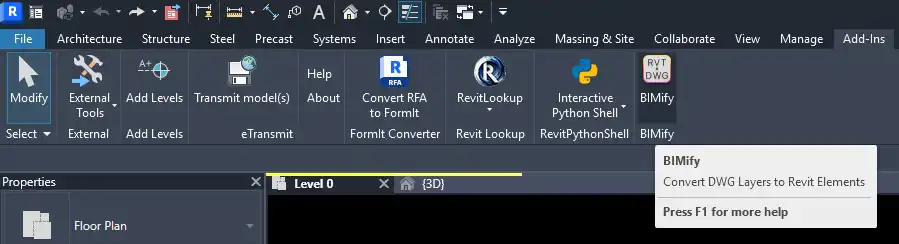
(Image by: AK Tools)
How BIMify Works
BIMify simplifies the process of converting 2D AutoCAD data into 3D Revit elements by automatically generating the corresponding geometry in seconds. Instead of tracing lines manually or placing elements one by one over a background link, BIMify reads the layer data from your linked DWG file and does the heavy lifting for you. This means you can focus on more important tasks while BIMify takes care of the rest.
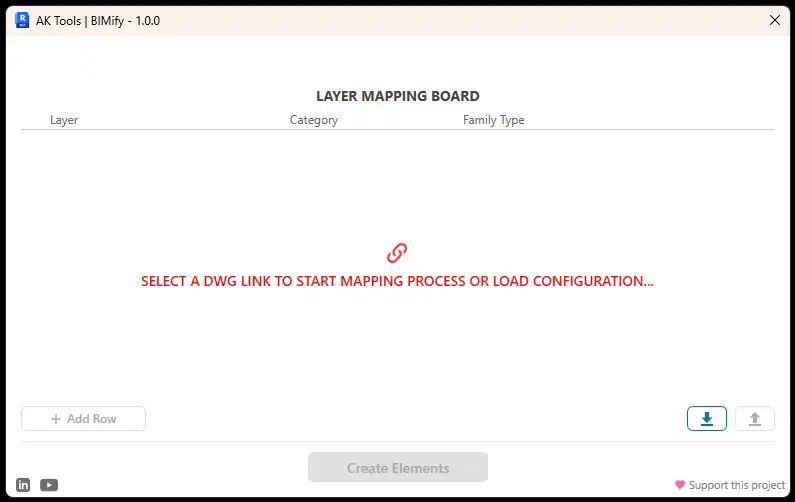
(Image by: AK Tools)
Benefits of Using BIMify
One of the biggest advantages of using BIMify is its ability to bridge the gap between legacy CAD projects and BIM workflows. Whether you are migrating old CAD projects to BIM or collaborating with consultants who still work in 2D, BIMify ensures a smooth transition without the need for manual input. This not only saves you time but also ensures accuracy and consistency across your projects.
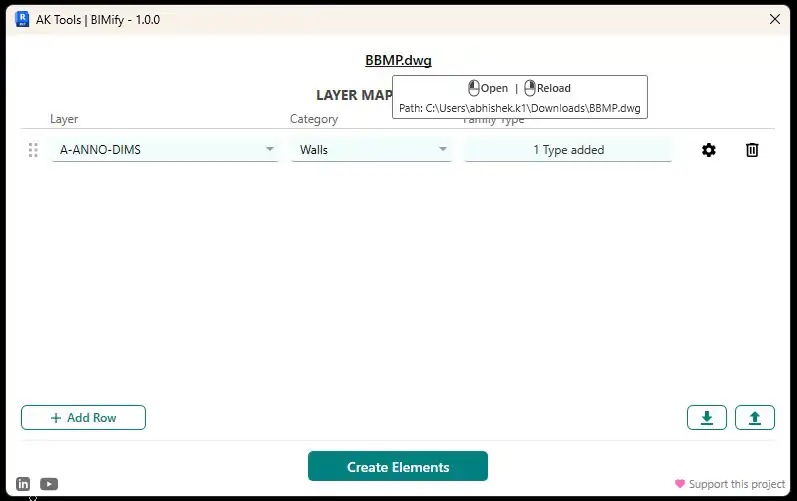
(Image by: AK Tools)
Conclusion
If you are looking to streamline your workflow and increase your productivity, BIMify is the perfect tool for you. Say goodbye to manual tracing and repetitive modeling work - with BIMify, you can focus on what truly matters. Try BIMify today and experience the power of automation in your Revit projects.
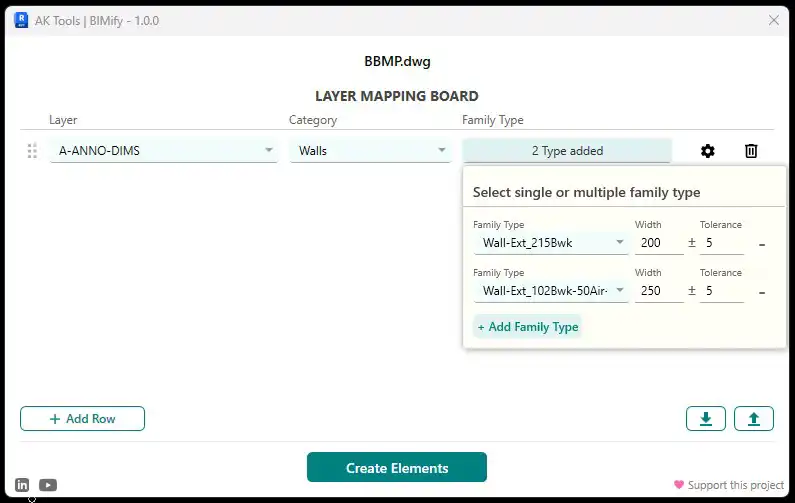
(Image by: AK Tools)
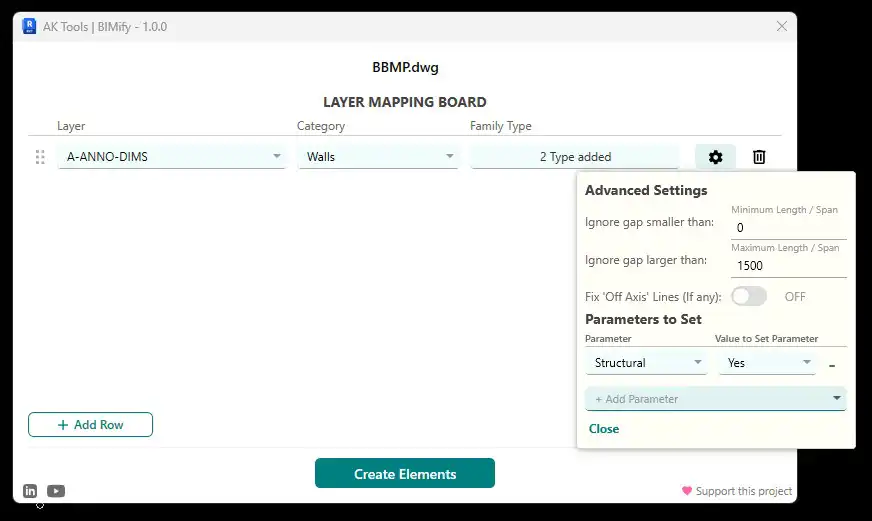
(Image by: AK Tools)
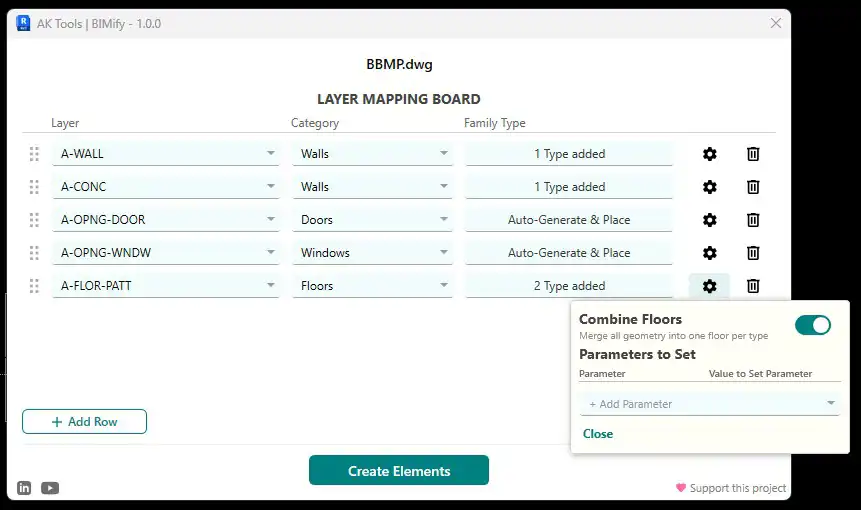
(Image by: AK Tools)
Similar apps:
- Free
- $1.99/month
- Free
- $5
- Free
- Free